Writing cards
A card can be as simple as a question and an answer. Add other content when it helps you understand or remember the subject.
Front and Back
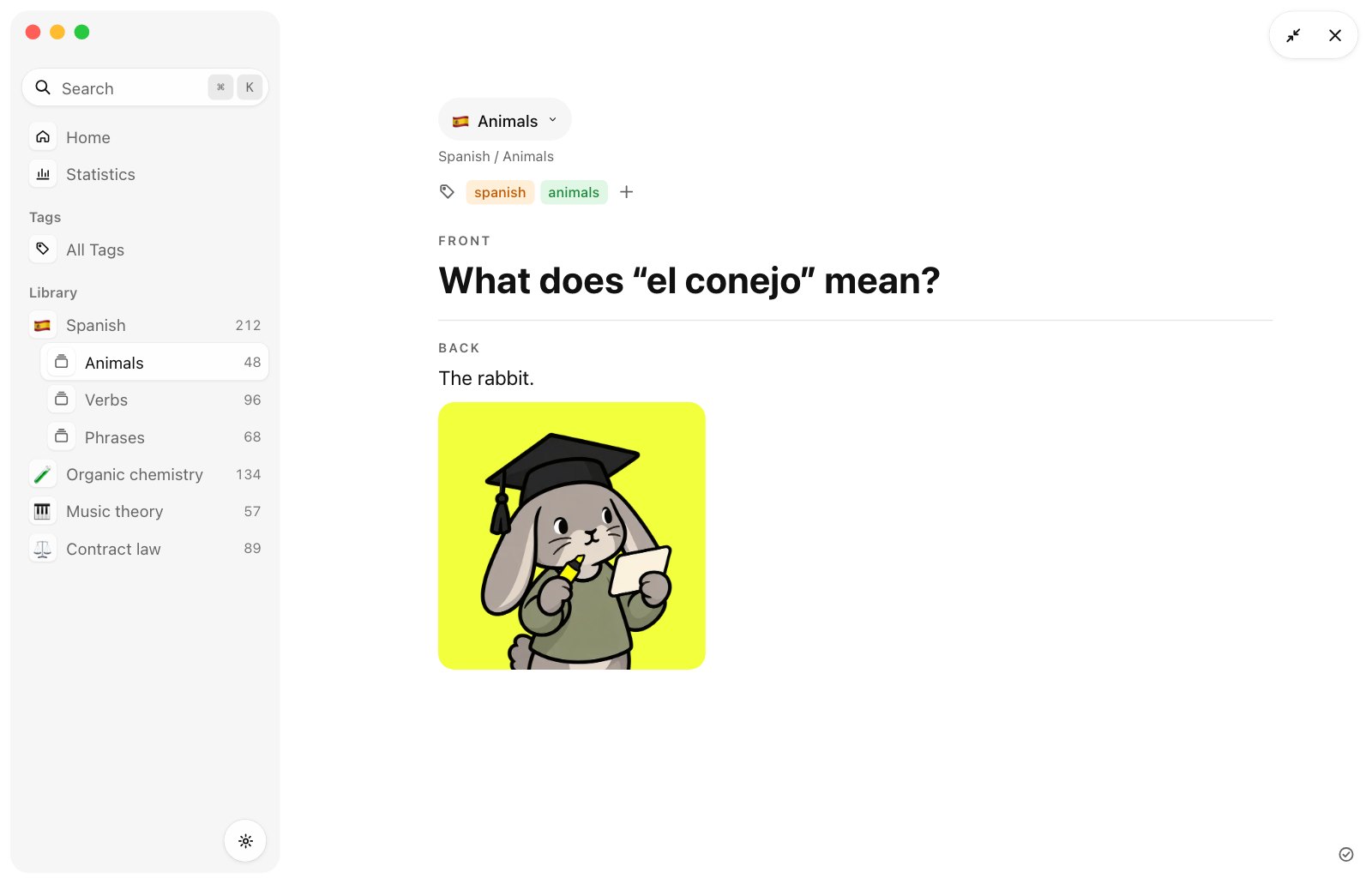
Section titled “Front and Back”The editor keeps the Front and Back visible together. Existing cards open in a side peek for quick edits; expand the editor when you need more space.
Ordinary recall cards need content on both sides. Incomplete cards stay saved as drafts and are excluded from study. Completing a draft makes it available without a separate publish or save action.
Reversible cards
Section titled “Reversible cards”Open the card’s … menu and turn on Reversible to alternate which side appears first during study. The card keeps one shared review schedule. A subtle repeat-arrow icon marks cards that study both directions.
New card and Command-N copy this setting from the current card. You can still change it for each card separately. Both sides need complete content to study both directions. Typetest and image occlusion always start with the Front and hide the icon. The setting stays saved and applies again when you remove those exercises.
Add blocks
Section titled “Add blocks”Type / in an empty text block to open the insertion menu. Choose a heading,
list, image, audio, table, equation, or divider.
Drag an image into the editor to add it to the card. Images and audio belong to the library’s Card Assets, so removing them from one card does not immediately delete the stored file.
Format text
Section titled “Format text”Select text to open formatting, or use familiar shortcuts such as Command-B for bold and Command-I for italic.
Press Return to split a text block. Use Shift-Return for a line break within the same block. Undo remains available while the editor is open, including after autosave or expanding the editor.
Typing ->, <-, or <-> turns it into →, ←, or ↔. The editor also
converts -- to —, ... to …, != to ≠, <= to ≤, >= to ≥,
and +/- to ±. Pasted text stays as written.
Tables and equations
Section titled “Tables and equations”Tables hold rich text, line breaks, and inline equations. Paste cells copied from a spreadsheet to create a table, or fill an existing one from the current cell. Table cells do not contain nested lists or other blocks.
Use a math block for a standalone equation. Inline equations can sit within your text.
Practice with an image or a typed answer
Section titled “Practice with an image or a typed answer”Image occlusion lets you cover parts of a Front image with boxes. Use it for diagrams or labeled illustrations. During study, reveal a box on its own or show the whole answer before rating the card.
Typetest turns a Front answer span into a gap you fill in during study.
Use /typetest in a Front text block or select text and choose Typetest in
formatting. A complete Front exercise can supply its own answer without a Back.
Autosave and drafts
Section titled “Autosave and drafts”Cani saves edits after a short pause. The editor’s status icon tells you when it is saving, saved, a draft, or unable to save. Hover for details and click a save error to retry.