Studying
Try to recall the answer before you reveal it. Your rating tells Cani how the attempt went and helps it decide when to ask again.
Start a session
Section titled “Start a session”Home offers five, ten, and twenty-minute sessions, or the option to study all available cards. Start from a deck to focus on that deck and its child decks.
In a deck, choose Custom study and toggle Due and New independently to study either group or both. You can add a time goal of up to 60 minutes. Leave it at Off for no goal. Cani remembers your last started setup on that device.
Available cards are complete, active cards that are new or due for review. Drafts and archived or trashed material do not appear.
Reveal and rate
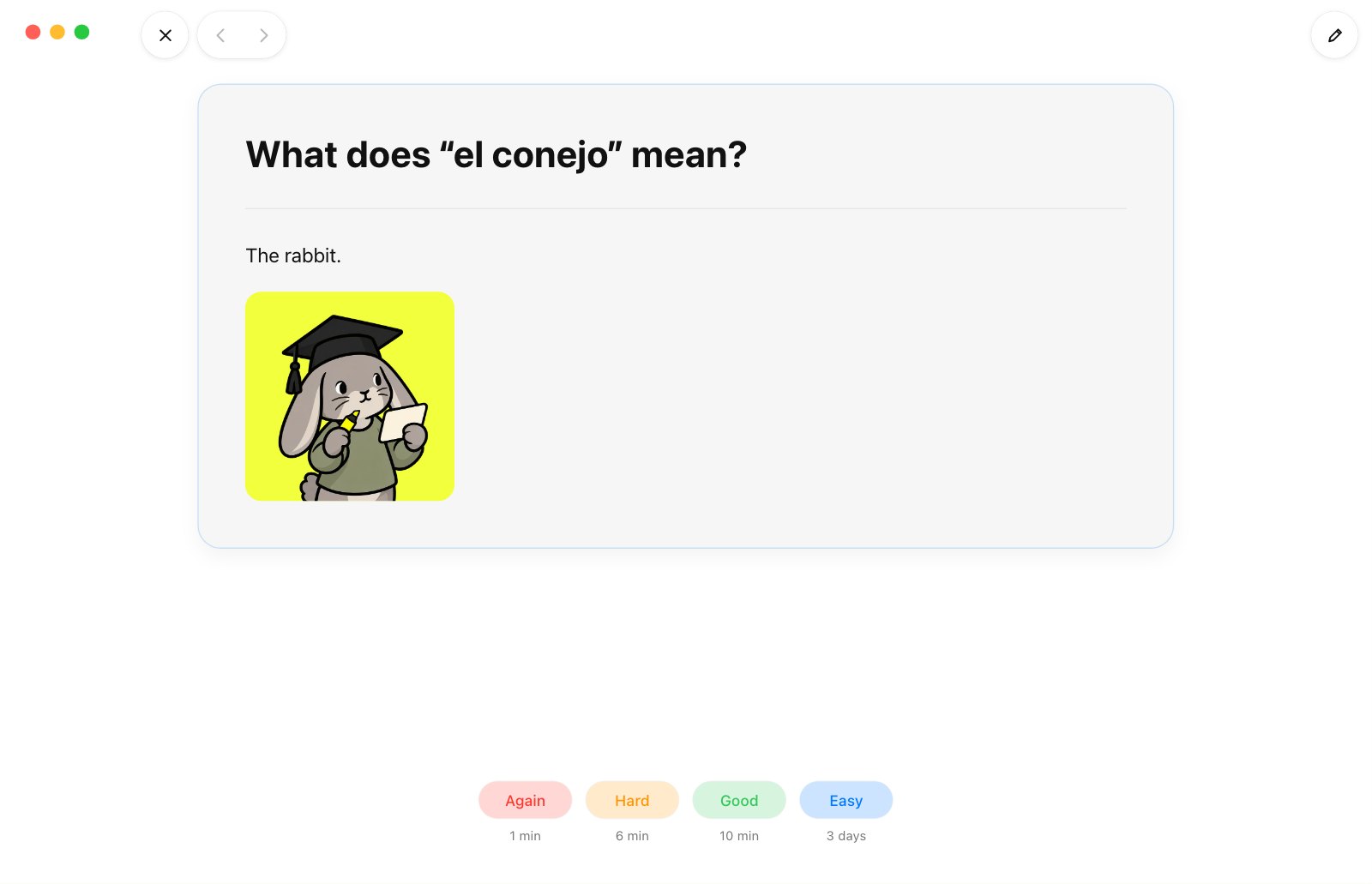
Section titled “Reveal and rate”Read the Front and think of your answer. Press Space or choose Show answer to reveal the Back. On iPhone and iPad, you can also tap the study background. Then choose the rating that matches your recall.
| Rating | When to choose it | Default key |
|---|---|---|
| Again | You could not recall the answer. | 1 |
| Hard | You recalled it, but with difficulty. | 2 |
| Good | You recalled it correctly with normal effort. | 3 |
| Easy | The answer came immediately and felt effortless. | 4 |
The buttons show the proposed interval before you answer. Cani saves each rating immediately.
Cards with Reversible alternate between Front-first and Back-first after each review. Reopening an unanswered card keeps the same side. Both directions share the same progress and next review date. Reviewing history keeps the direction you originally saw.
How scheduling works
Section titled “How scheduling works”Cani uses FSRS to estimate how your memory changes with each review. New cards start with short learning steps before moving into longer-term review. Forgetting a card brings it back through relearning.
You do not need to pick the next date yourself. Choose an honest rating and let the schedule follow your answers.
New cards come after your due cards. Turn on Mix in new cards in Settings > Study to see one new card after every 6 reviews instead. To study new cards on purpose, use Custom study with only New selected.
Settings > Study also sets desired retention. Higher retention generally means more frequent reviews.
Correct an answer
Section titled “Correct an answer”Use Back and Forward to revisit answers in the current session. You can correct the latest answer for a card. Earlier appearances of that same card are read-only.
Looking through history pauses study timing. Correcting a rating replaces the answer instead of adding an extra review.
Take a break
Section titled “Take a break”Short sessions do not show a countdown. After you reach the chosen duration and finish the current card, Cani offers Done or Keep Going.
You can leave earlier, too. Answers already given stay saved.
Study with a controller
Section titled “Study with a controller”Reveal answers, choose all four ratings, scroll long cards, and revisit answers with a game controller. Pair it in your device’s Bluetooth settings, then start a study session in Cani. The reviewer shows the connected controller and its current button labels.
Controller compatibility
Section titled “Controller compatibility”Cani accepts controllers recognized by the system with a D-pad, four face buttons, two shoulder buttons, and a Menu button. Compatibility depends on these controls rather than the brand.
| Controller | Verification in Cani |
|---|---|
| PlayStation 5 DualSense | Physically verified over Bluetooth on Mac |
| PlayStation 5 DualSense Edge | Not yet physically verified |
| PlayStation DualShock 4 | Not yet physically verified |
| Xbox Wireless Controller, Series X / S | Not yet physically verified |
| Xbox One Wireless Controller with Bluetooth, model 1708 | Not yet physically verified |
| Xbox Elite Wireless Controller Series 2 | Not yet physically verified |
| Nintendo Switch Pro and other standard controllers | Not yet physically verified; must provide the controls listed above |
Apple lists the PlayStation and Xbox models above as compatible with its devices. See Apple’s pairing instructions for PlayStation, Xbox, and other Bluetooth controllers. System compatibility does not mean a controller has been tested in Cani. USB connections and physical iPhone/iPad use also still need verification.
Buttons during study
Section titled “Buttons during study”These are the default PlayStation and Xbox controls. For other layouts or system-remapped buttons, follow the labels shown in Cani.
| Action | PlayStation | Xbox |
|---|---|---|
| Show answer, then Good on a separate press | Cross × | A |
| Again after reveal | Square □ | X |
| Hard after reveal | Circle ○ | B |
| Easy after reveal | Triangle △ | Y |
| Previous / next answer in this session | L1 / R1 | LB / RB |
| Scroll the card, hold to keep scrolling | D-pad up / down | D-pad up / down |
| Open the Resume / Exit study menu | Options | Menu |
Release between actions. Holding a button never reveals and rates together. History buttons revisit answers already given; they never skip an unanswered card. You can correct a card’s latest answer with the same rating buttons.
In the menu, use the D-pad to select, Cross / A to activate, and Circle / B or Options / Menu to resume. Study timing pauses while the menu is open. After a timed session, Cross / A keeps going and Circle / B finishes. On the finished screen, Cross / A closes the summary. If an error appears, Cross / A retries and Circle / B exits study.
What still needs the keyboard or touch
Section titled “What still needs the keyboard or touch”Controller support covers an open study session. Start sessions and navigate the library with the app’s usual controls. Typed answers, individual image occlusion boxes, and audio playback still use the keyboard, mouse, or touch. Revealing with the controller uncovers all remaining occlusion boxes.
Input pauses while another app, window, or overlay has focus. Disconnecting leaves your session intact, and you can continue with the keyboard or touch.
See your progress
Section titled “See your progress”Statistics tracks answers, distinct cards studied, active study time, recall rate, streaks, and activity over time. Imported scheduling progress does not add past Anki reviews to these statistics.
A day counts toward your streak once you reach your daily answer goal, across all your devices. When you change the goal, past days keep their previous target.
Set a Daily goal in Settings > Study to fill a ring as you answer. The default is 100 answers per day; repeat answers count too. The ring always counts today’s answers across all decks, regardless of the Statistics filters. Cani on Apple Watch shows the goal and a summary sent by the iPhone app, with a Daily Goal complication for your watch face.
Show session progress is on by default. You can turn it off in Settings > Study. The ring shows answers given out of a total that includes those answers and cards currently available in the session. The total can change as repeat cards become due. It does not show a countdown.
Reminders
Section titled “Reminders”On iPhone and iPad, Cani sends a few reminders on its own: a deck worth revisiting, a check on your daily goal, and a note before your streak ends. It picks times from when you usually study, on weekdays and weekends separately, nudges you if that time passes without study, sends fewer if you dismiss them, and holds back once you’ve studied that day. Turn them off with Daily Learning Reminders in Settings.
To study a deck at set times, open the deck, tap …, then Reminders, tap +, and pick a time and the days it repeats on. A deck can have five, and you can have 20 across all decks. Each reminder says how many cards are due and new in that deck and its subdecks, and stays quiet when there’s nothing to study. Reminders follow you to your other devices; your iPhone delivers them, so an iPad you also use doesn’t repeat them.