Your first cards
Start with a subject you care about and a handful of questions. You can add more as you learn.
Already have cards in Anki? Bring over an existing deck.
Create a deck
Section titled “Create a deck”Use the deck creation button to add a deck to your library. Name it after a subject, course, or project. Click the deck title to rename it later.
A deck holds cards and can also contain child decks. You can start with one deck and organize it later.
Write a question and answer
Section titled “Write a question and answer”Create a card in your deck. The editor shows two sections:
- Front holds the question or prompt you want to see during review.
- Back holds the answer you will reveal after trying to recall it.
For example, put “What does the Spanish word recordar mean?” on the Front and “To remember” on the Back.
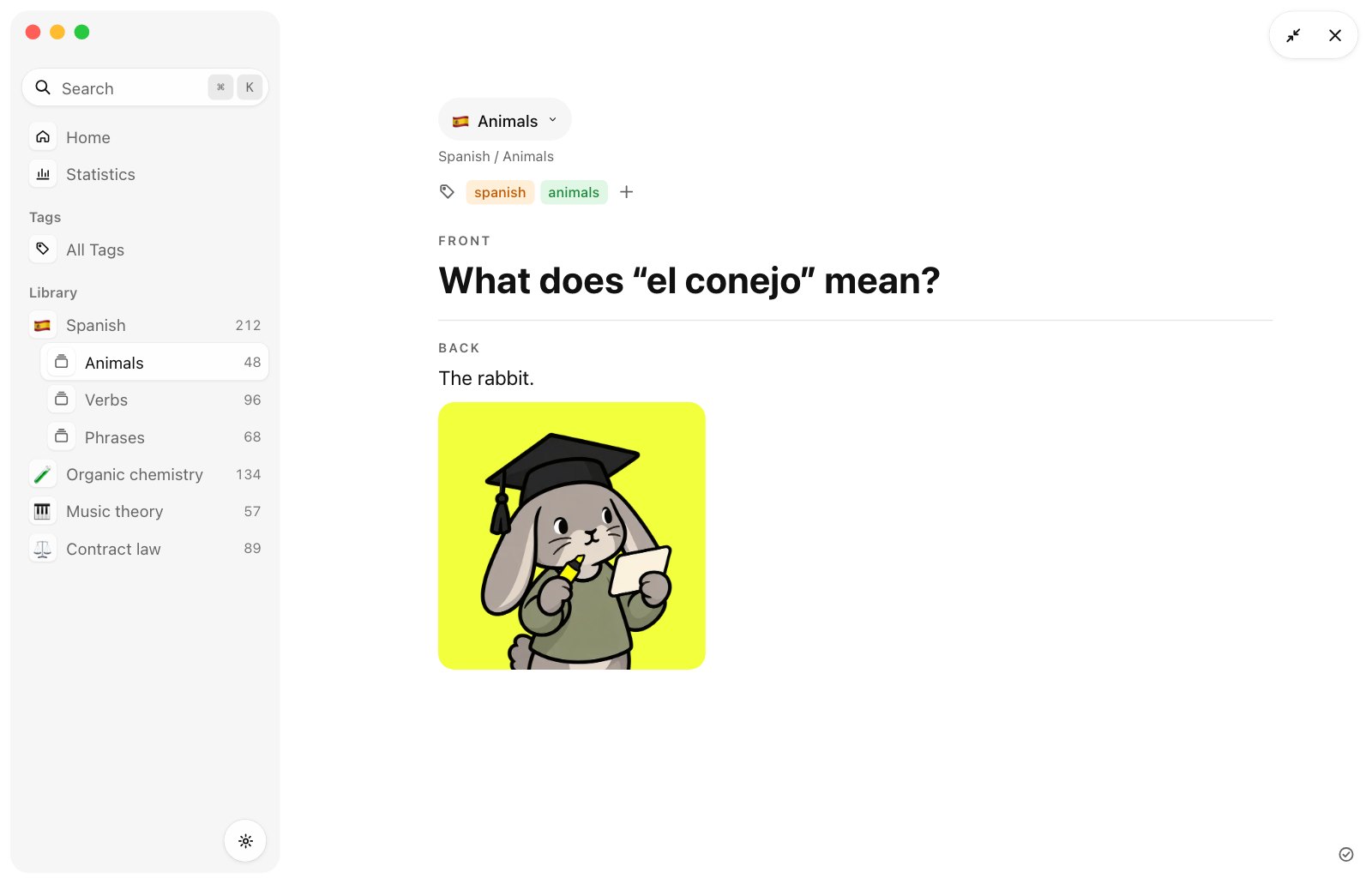
Changes save automatically after a short pause. Closing the editor keeps your work. A card with an unfinished question or answer stays a Draft and will not appear in study.
See Writing cards for images, formatting, and other blocks.
Try your first review
Section titled “Try your first review”Open your deck and start a review. Read the Front, try to answer, then reveal the Back with Show answer or Space.
Choose Again, Hard, Good, or Easy based on how well you remembered. Cani saves the answer and schedules the next review.
You can also start a short session from Home. Five, ten, and twenty-minute sessions give you a stopping point after the current card, with the option to keep going.
Come back for due cards
Section titled “Come back for due cards”New cards are ready to study as soon as they are complete. After a review, Cani brings them back when they are due. You do not need to review every card in the library each day.
Continue with Studying to understand the ratings and review schedule.
Payment problems
Section titled “Payment problems”Custom Pi-hole configurations can block RevenueCat, which Cani uses to load subscription plans and verify purchases. If you see a subscription error, switch networks and reopen Cani.