Importing and exporting
Your cards are never locked in. Cani imports Anki packages, Cani packages, and spreadsheets, and exports any deck or your whole library in the same formats.
Supported formats
Section titled “Supported formats”| Format | Import | Export | Opens in |
|---|---|---|---|
Cani package (.cani) |
Yes | Yes | Cani on any device |
Anki package (.apkg) |
Yes, also .colpkg |
Yes | Anki 2.1.50 or later, AnkiMobile, AnkiDroid |
CSV (.csv) |
Yes | Yes | Numbers, Excel, Google Sheets, most flashcard apps |
TSV (.tsv) |
Yes | Yes | The same apps, with tabs instead of commas |
Each format keeps a different amount of your work:
- Cani package keeps everything a card holds: formatting, images, audio, equations, Typetests, tags with their colors, deck icons, and review progress. Use it to move decks between Cani libraries or to share them.
- Anki package keeps formatting, images, audio, equations, tags, the deck tree, and review progress. Image occlusion masks, tag colors, and deck icons have no Anki equivalent. Anki asks one typed answer per card below the question, so further Typetests become a blank with their answer on the back.
- CSV and TSV keep plain text, tags, and the deck path. Formatting, images, and audio stay behind.
No format includes archived or trashed cards, study history, or deck order.
Import a file
Section titled “Import a file”On the Mac, choose File > Import or Settings > Import. On iPhone and iPad, choose Import in Settings, on Home, or in the + menu. Then select your file. Reading it prepares a preview without adding anything to your library.
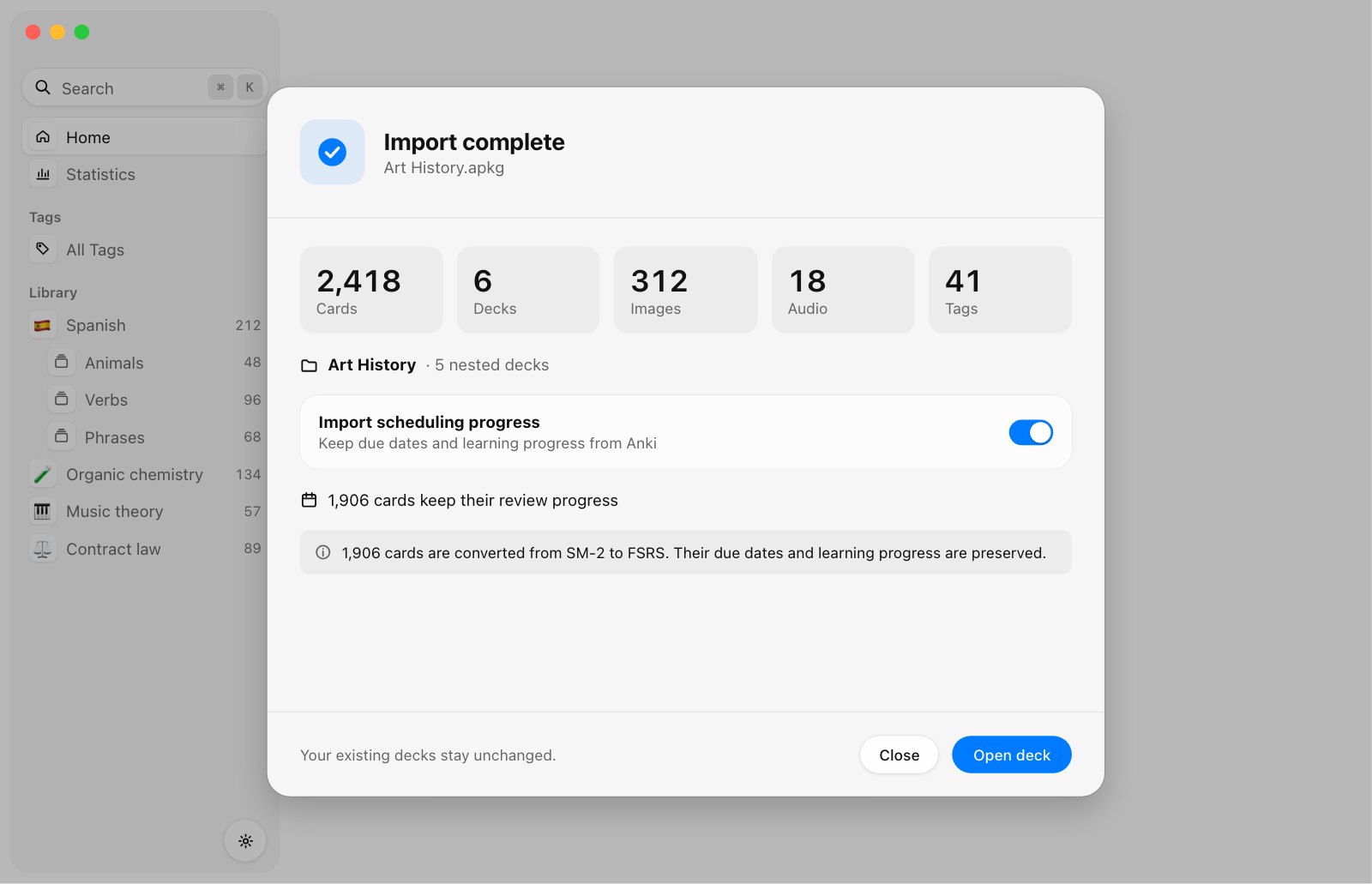
The preview counts cards, decks, media, and tags. Open Details to read its warnings, such as skipped cards or scheduling resets, before importing.
Bring cards from Anki
Section titled “Bring cards from Anki”In Anki, export your deck as an .apkg file. Include media if you want images
and audio to come across, and scheduling information if you want to keep your
review progress.
Cani converts text formatting, lists, tables, images, audio, tags, equations, ordinary cloze deletions, and typed answers into editable cards. A typed answer becomes a Typetest on the front of the card, and each card Anki generates becomes its own Cani card. Custom template behavior, scripts, and missing media are listed under Details, so check it when a deck uses add-ons or custom templates, and look over imported cards before relying on them for study.
Current scheduling transfers, but past Anki reviews do not become Cani study statistics. Cani does not sync later changes back to Anki, and your original package stays unchanged. To take cards back to Anki, export an Anki package.
Choose what to keep
Section titled “Choose what to keep”Packages that carry review progress offer Keep review progress, enabled by default. Turn it off to start every card as New. Anki packages also offer separate choices for suspended and buried cards; check the preview after changing them to see what will be included. Cards from CSV and TSV files always start as New.
Import into your library
Section titled “Import into your library”Choose Import deck to create a new deck. A progress ring shows the import as it saves. When it completes, choose Open deck to start browsing the result.
Matching deck names do not merge automatically. When a top-level deck has exactly the incoming name, you can explicitly select it for replacement.
Export decks
Section titled “Export decks”- One deck: open a deck’s options menu, or right-click it in the Mac sidebar, and choose Export. Pick a format, and the deck exports with its child decks.
- Your whole library: on the Mac, choose File > Export Library. A Cani package of several top-level decks holds them in one deck named Cani Library.
The Mac saves the file to a folder you choose, starting in Downloads. iPhone and iPad open the share sheet, so you can save it to Files or send it to another app.
How a CSV file has to look
Section titled “How a CSV file has to look”Each row is one card. Cani reads four columns:
| Column | Holds | Required |
|---|---|---|
| Front | The question | Yes, or a Back |
| Back | The answer | Yes, or a Front |
| Tags | Tags separated by commas | No |
| Deck | The deck, with :: between parent and child |
No |
Name the columns in the first row, in any order, to make the file easiest to read. Upper or lower case does not matter. Without that row, Cani reads the columns in the order above.
Front,Back,Tags,DeckWhat is the powerhouse of the cell?,The mitochondrion,"biology, exam",Biology::CellsWhich states of matter are there?,"SolidLiquidGas",chemistry,Chemistry"What does ""DNA"" stand for?",Deoxyribonucleic acid,biology,Biology- Quotes: wrap a cell in double quotes when it holds a comma, a line break,
or a quote. Write a quote inside it twice, as in
""DNA"". Spreadsheet apps do this for you. - Line breaks: each line in a cell becomes its own paragraph. The first line of the front becomes the card’s heading.
- Decks: when every row shares one top-level deck, it becomes the imported deck, and the rest of each path builds its child decks. Otherwise the file name names the new deck and holds them all. Rows without a deck go straight into it.
- Separators: a
.csvfile may use commas or semicolons, which Excel writes in many European languages. Cani picks whichever the first row uses more. A.tsvfile uses tabs. - Text encoding: save as UTF-8. Older Excel files from Windows also work.
- Empty rows and rows with neither a front nor a back are skipped.
To build a deck in a spreadsheet, type Front, Back, Tags, and Deck in
the first row, fill in one card per row, and export or save it as CSV.
Exported CSV and TSV files use the same layout, so you can edit them and import
them again. A Typetest in the question becomes ____, and its answer moves to the
start of the back. Lists keep their bullets and numbers, and table cells are
separated by |.